Getting Started
Use Recall with ChatGPT
Connect Recall as a connector so ChatGPT can save, search, and resurface your notes with one click.
Need help?
Email us anytime at support@recallnotes.io and we’ll help you get set up.
Prerequisites
- ChatGPT web or desktop.
- Developer Mode turned on (required while connectors roll out).
- Stable internet to reach the Recall MCP server.
MCP server URL
https://mcp.recallnotes.io/mcp
Step-by-step
Set up ChatGPT
-
1) Turn on Developer Mode
Open ChatGPT → Settings → Connectors → Advanced → enable Developer mode. If you need a refresher, follow OpenAI’s guide.
If you don’t see Developer Mode yet, wait for connectors to finish rolling out. -
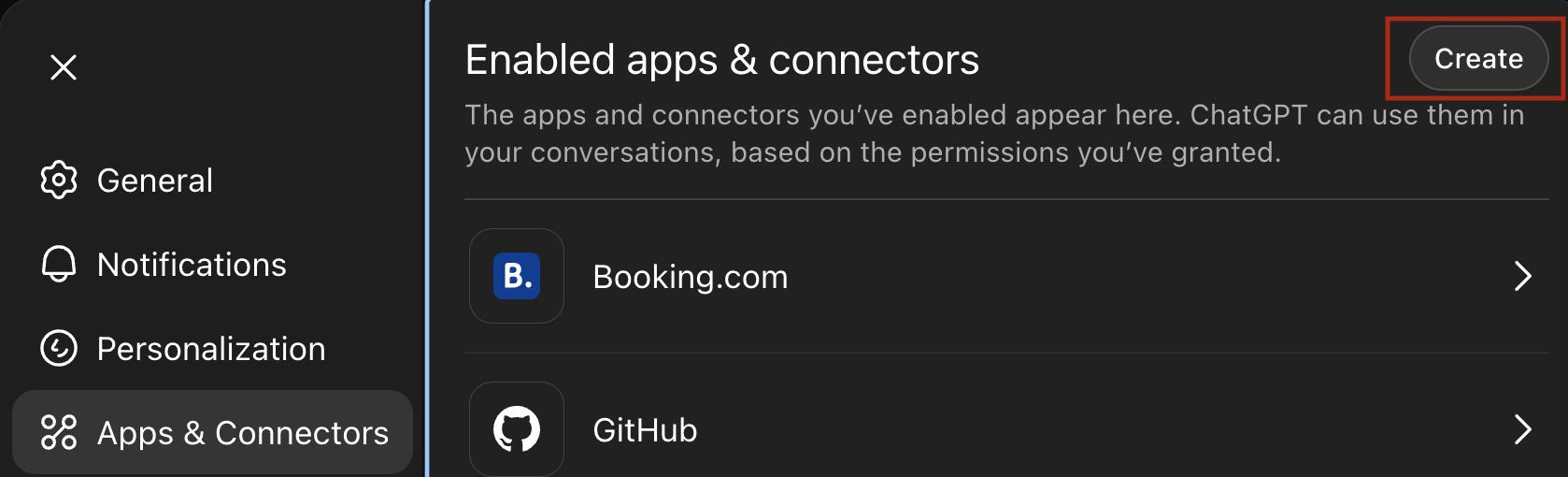
2) Open the Connectors screen
Visit chatgpt.com/#settings/Connectors and click Create.
-
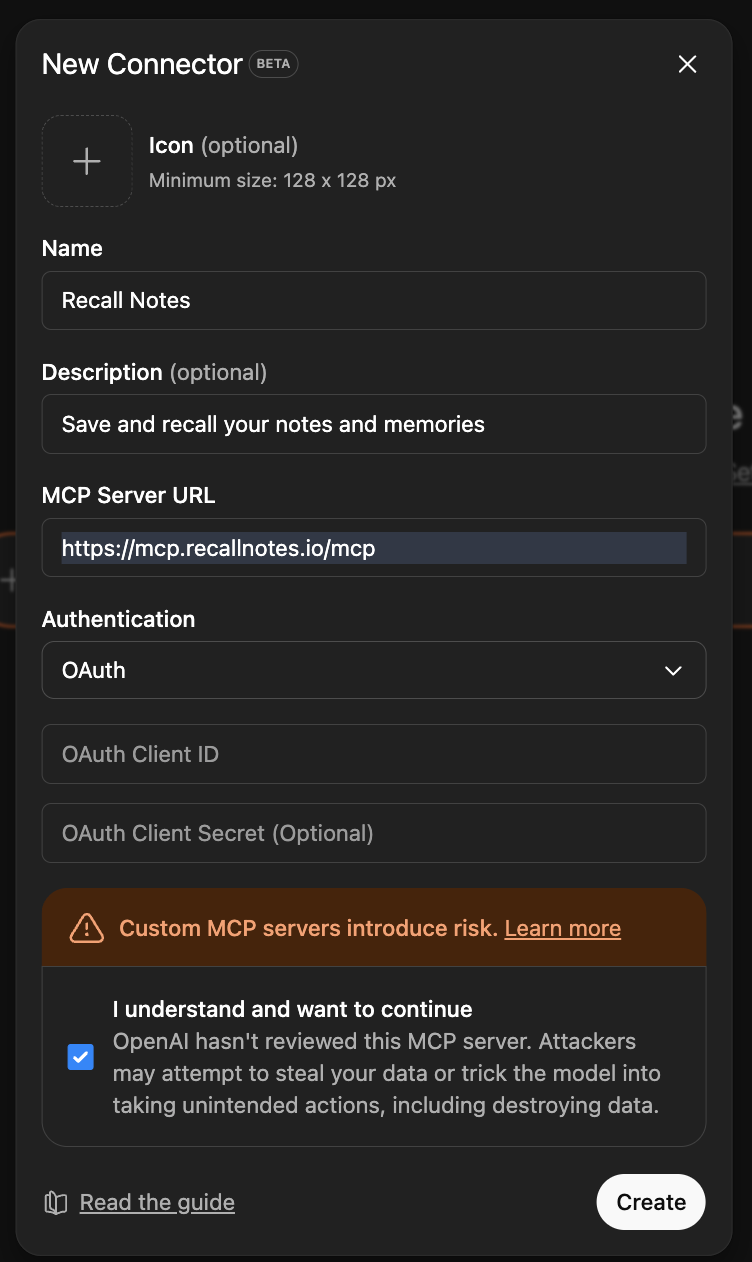
3) Fill in the connector form
- Name:
Recall Notes -
MCP server URL:
https://mcp.recallnotes.io/mcp - Authentication: OAuth
- Leave other fields blank, then click Create.
- Name:
-
4) Approve the login flow
ChatGPT opens a browser tab. Sign in or sign up for Recall. When you finish, the tab closes and the connector shows as connected.
What to expect after setup
- Recall appears under the connector list in ChatGPT.
- ChatGPT can save new notes, search past ones, and bring them into conversations.
- OAuth stays active until you disconnect it from ChatGPT settings.
Test it
Try any of these in a chat to confirm everything works:
- “Save this to Recall.”
- “Search Recall for sprint retro.”
- “Fetch my note about the launch plan.”
- “Update that note in Recall for onboarding.”
Each command should show a success message from ChatGPT and a short summary of what Recall saved or returned.
Troubleshooting
Connector not showing
- Refresh ChatGPT after enabling Developer Mode.
- Revisit Settings → Connectors and confirm Recall Notes is listed.
Server unreachable
- Verify you can open
https://mcp.recallnotes.io/mcpin a browser - Check VPNs or firewalls that could block the MCP URL.
OAuth window doesn’t appear
- Allow pop-ups for chatgpt.com.
- Try again after closing extra Recall login tabs.
Commands run but nothing saves
- Ensure the connector is pinned and selected in the message bar.
- Retry the test prompts above to confirm the connection.
Still stuck? Contact us: support@recallnotes.io
Next steps